Ignite UI for Angular 14.1.xバージョン時点での情報に基づいています。
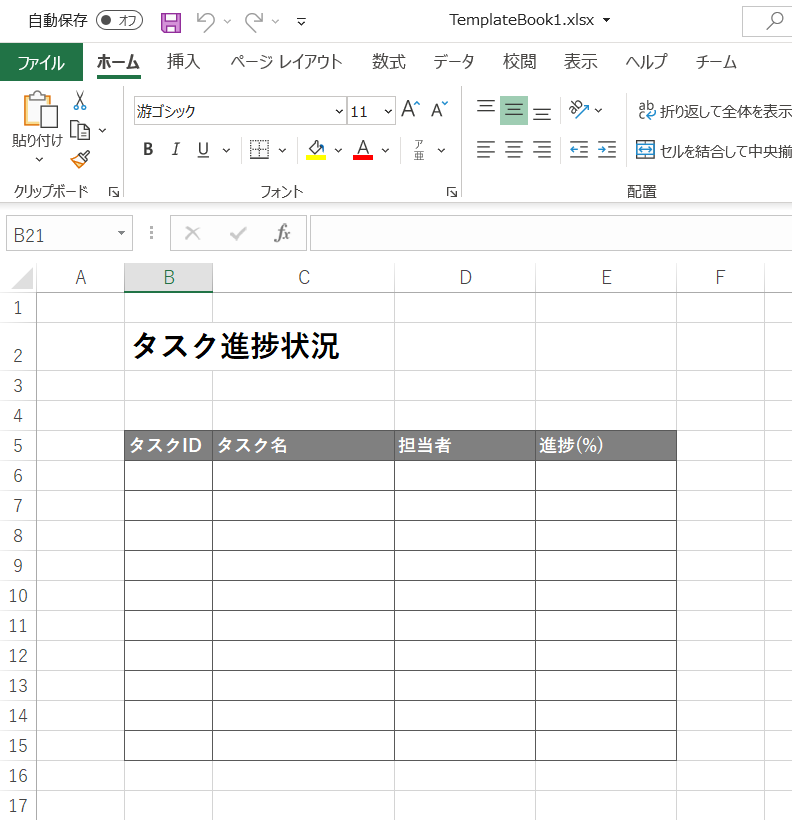
テンプレート用のExcelファイルを読み込み、必要なデータを書き出し、Excelファイルに保存するサンプルです。
テンプレート用のExcelファイル
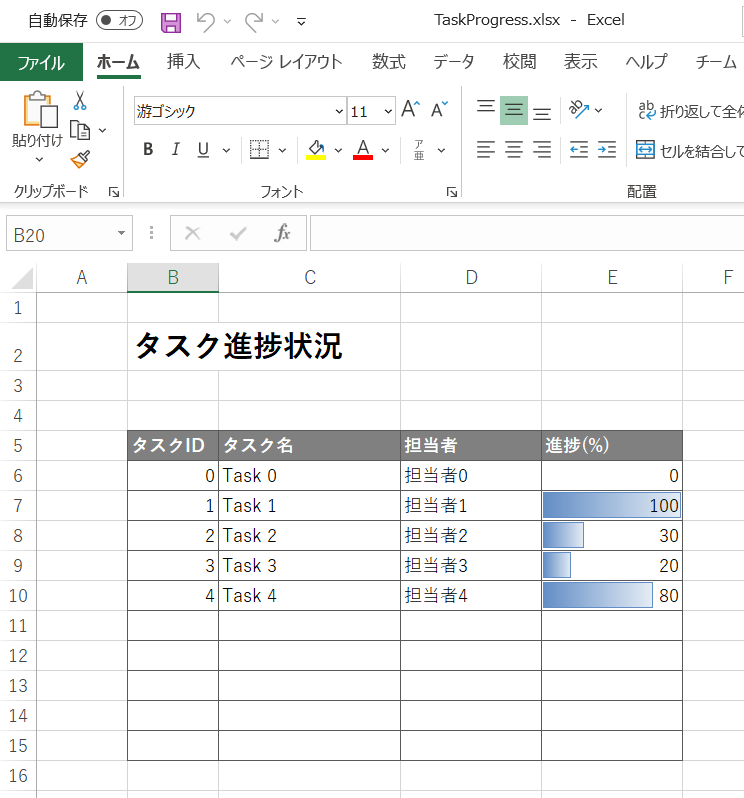
データを書き出した後のイメージ
コードスニペット
1. app.module.ts
IgxExcelModuleをインポートします。
 app.module.ts
...
import { IgxExcelModule } from 'igniteui-angular-excel';

@NgModule({
  ...
  imports: [
    BrowserModule,
    BrowserAnimationsModule,
    IgxExcelModule,
  ],
  ...
})
...
2. app.component.html
input(type=”file”)でファイルを選択するダイアログを配置しています。
<!-- app.component.html -->
<input
  type="file" #fileInput
  accept="application/vnd.ms-excel, application/vnd.openxmlformats-officedocument.spreadsheetml.sheet"
  (change)="changeFile($event, fileInput.files)"/>
3. app.component.ts
input(type=”file”)のchangeイベントのイベントハンドラーchangeFile()内で、Excelファイルのロード、データの書き込み、保存、をしています。
// app.component.ts
import { ExcelUtility } from "./ExcelUtility";

@Component({
  selector: 'app-root',
  templateUrl: './app.component.html',
  styleUrls: ['./app.component.scss']
})

export class AppComponent {
  title = 'kb3886-app1';

  public gridData: any[];

  constructor() {
  }

  ngOnInit(): void {
    this.gridData = [];
    for(let i = 0; i < 5; i++){
      this.gridData.push({ID: i, TaskName: "Task " + i, Assignee: "担当者" + i, Progress: Math.floor(Math.random () * 11) * 10 });
    }
  }

  public async changeFile(event, files: any): Promise<void> {
    // Workbookの読み込み
    let workbook = await ExcelUtility.load(files[0]);

    // gridDataの記入
    let rowOffset = 5;
    let cellOffset = 1;
    let keys = Object.keys(this.gridData[0]);
    for(let i = 0; i < this.gridData.length; i++ ){
      for(let j = 0; j < keys.length; j++){
        workbook.worksheets(0).rows(i + rowOffset).cells(j + cellOffset).value = this.gridData[i][keys[j]];
      }
    }

    // Workbookの保存
    ExcelUtility.save(workbook, "TaskProgress");
  }
}
4. ExcelUtility.ts
Excelファイルを取り扱うにあたって、便利なメソッドを集めたユーティリティークラスです。「Excel ユーティリティ」からコピーしてきています。
// ExcelUtility.ts
import { saveAs } from "file-saver"; // npm package: "file-saver": "^1.3.8"
import { Workbook } from 'igniteui-angular-excel';
import { WorkbookFormat } from 'igniteui-angular-excel';
import { WorkbookSaveOptions } from 'igniteui-angular-excel';

export class ExcelUtility {
    public static getExtension(format: WorkbookFormat) {
        switch (format) {
            case WorkbookFormat.StrictOpenXml:
            case WorkbookFormat.Excel2007:
                return ".xlsx";
            case WorkbookFormat.Excel2007MacroEnabled:
                return ".xlsm";
            case WorkbookFormat.Excel2007MacroEnabledTemplate:
                return ".xltm";
            case WorkbookFormat.Excel2007Template:
                return ".xltx";
            case WorkbookFormat.Excel97To2003:
                return ".xls";
            case WorkbookFormat.Excel97To2003Template:
                return ".xlt";
        }
    }

    public static load(file: File): Promise<Workbook> {
        return new Promise<Workbook>((resolve, reject) => {
            ExcelUtility.readFileAsUint8Array(file).then((a) => {
                Workbook.load(a, (w) => {
                    resolve(w);
                }, (e) => {
                    reject(e);
                });
            }, (e) => {
                reject(e);
            });
        });
    }

    public static loadFromUrl(url: string): Promise<Workbook> {
        return new Promise<Workbook>((resolve, reject) => {
            const req = new XMLHttpRequest();
            req.open("GET", url, true);
            req.responseType = "arraybuffer";
            req.onload = (d) => {
                const data = new Uint8Array(req.response);
                Workbook.load(data, (w) => {
                    resolve(w);
                }, (e) => {
                    reject(e);
                });
            };
            req.send();
        });
    }

    public static save(workbook: Workbook, fileNameWithoutExtension: string): Promise<string> {
        return new Promise<string>((resolve, reject) => {
            const opt = new WorkbookSaveOptions();
            opt.type = "blob";

            workbook.save(opt, (d) => {
                const fileExt = ExcelUtility.getExtension(workbook.currentFormat);
                const fileName = fileNameWithoutExtension + fileExt;
                saveAs(d as Blob, fileName);
                resolve(fileName);
            }, (e) => {
                reject(e);
            });
        });
    }

    private static readFileAsUint8Array(file: File): Promise<Uint8Array> {
        return new Promise<Uint8Array>((resolve, reject) => {
            const fr = new FileReader();
            fr.onerror = (e) => {
                reject(fr.error);
            };

            if (fr.readAsBinaryString) {
                fr.onload = (e) => {
                    const rs = (fr as any).resultString;
                    const str: string = rs != null ? rs : fr.result;
                    const result = new Uint8Array(str.length);
                    for (let i = 0; i < str.length; i++) {
                        result[i] = str.charCodeAt(i);
                    }
                    resolve(result);
                };
                fr.readAsBinaryString(file);
            } else {
                fr.onload = (e) => {
                    resolve(new Uint8Array(fr.result as ArrayBuffer));
                };
                fr.readAsArrayBuffer(file);
            }
        });
    }
}
サンプル
実行し、ファイル選択ボタンで同梱されているTemplateBook1.xlsxを選択すると、gridDataのデータを書き出したものがTaskProgress.xlsxとして保存・ダウンロードされる動作になっています。
リファレンス
- 「Excel ライブラリ」
- 「ワークブックの使用」
- 「セルの使用」
- 「Excel ユーティリティ」
- https://jp.infragistics.com/products/ignite-ui-angular/angular/components/excel_utility.html
- ※サンプル内のExcelUtility.tsはここからコピーしています。